TwinWorks
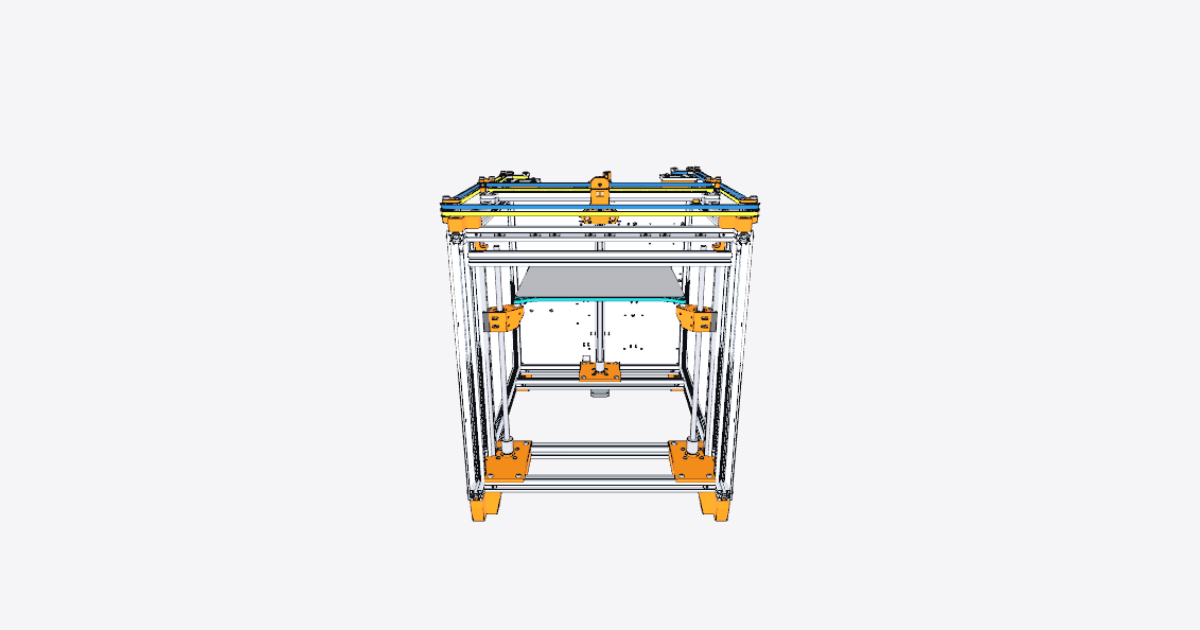
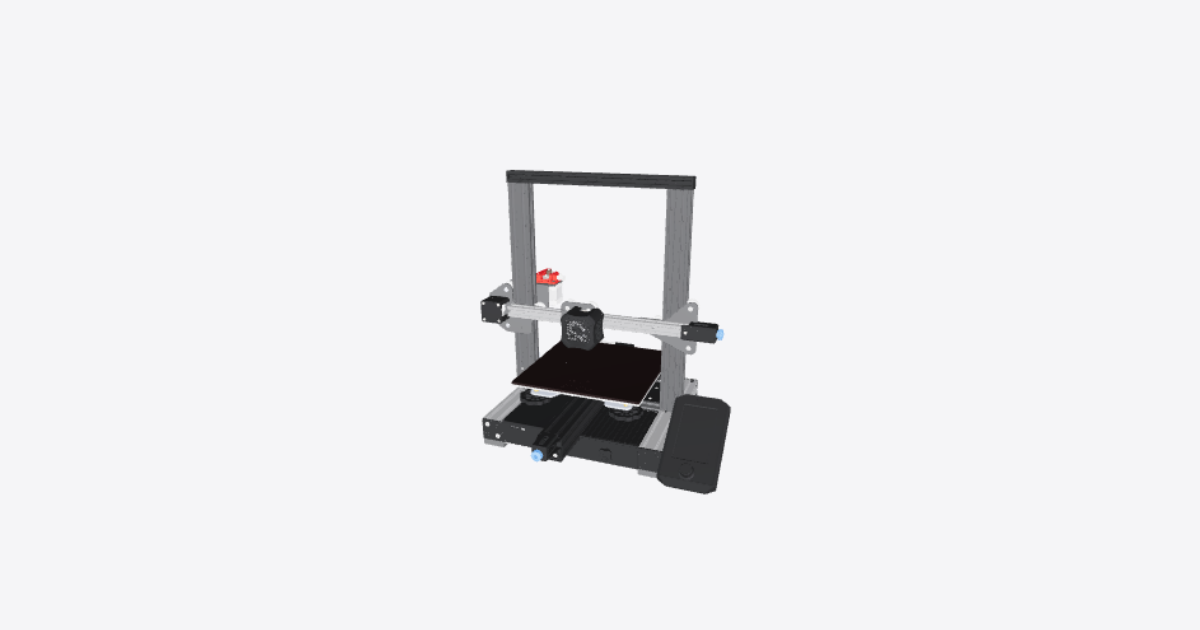
Jubilee toolchanger 3D printer – 3D model preview

Jubilee toolchanger 3D printer

Téa · 3D Printing · 3D model · Updated 30 Oct 2026

Open in 3D

  • Procedures2shared publicly
  • Views0all time
  • Rating–No ratings yet
  • Likes0from the Community

0 comments

Procedures

Tension the belts

Maintenance · 5 steps · No ratings yet

Tools

  • Smartphone with a guitar-tuning app
5 steps
  1. Center the carriage

    Center the carriage in the middle of the frame by eye. The belts may skip while they are loose; this is acceptable during this adjustment.

  2. Release the drive motors for adjustment

    Ensure both drive motors are loose enough to slide back and forth in their slots when pushed by hand. Loosen their mounting screws as needed. Locate the tensioning setscrews at the motor corner plates.

  3. Tune the upper belt to approximately 61 Hz

    Work in a quiet environment.

    Install and run a guitar-tuning app on a smartphone; it must display frequency in Hz. Hold the microphone near the front span of the upper belt and pluck the belt like a guitar string. Measure its frequency, then gradually tighten its tensioning setscrew to increase tension. Stop when the measurements average around 61 Hz.

  4. Match the lower belt to the upper belt

    Pluck and measure the lower belt with the tuning app, with the microphone near its front span. Tighten its tensioning setscrew until its measured frequency matches the upper belt to within 1 Hz.

  5. Secure all eight XY motor screws

    When belt tensioning is complete, tighten down all eight XY motor screws.
Install and dock a new tool

Assembly · 14 steps · No ratings yet

Tools

  • Hex key

Notice: Use the tool-lock macro, not a Tx tool-selection command, during manual attachment.

Notice: Avoid collisions: clear tools and parking posts in negative Y before making X-axis transfer moves.

Notice: Use the tool-unlock macro, not T-1 or Tx, for this manual release.

Notice: Avoid collisions: fully clear tools and parking posts in Y before moving across X.

Notice: Avoid collisions: tool-change paths must clear tools and parking posts in Y before X-axis transfer moves.

14 steps
  1. Check prerequisites and parking-post compatibility

    Before starting, confirm that the printer homes and moves correctly in X, Y, Z and the tool-lock axis, and that its lock, unlock, tpost and tfree macros are configured for this machine. Have a fully assembled parking post and the fasteners and tee-nuts needed to attach it to the X-axis frame member.

    Check that the four-number codes on the tool holder and parking-post base match.

  2. Power up and home all axes

    Power up the printer and home all axes.

  3. Loosely mount the parking post

    Loosely fasten the assembled parking post to the rail near the intended tool location. Leave it movable for X-axis positioning and height adjustment.

  4. Lower the build plate for tool clearance

    Move the build plate down using positive Z until every tool to be mounted will fully clear the bed. The manual gives Z50 or more as a usual starting point; verify clearance for the actual tool.

  5. Place and lock the tool onto the carriage

    Jog the carriage close to the center of the printer bed. With T-1 selected (no active tool), manually place the tool against the lock carriage and secure it using the tool-lock macro. Do not select a tool using a Tx command at this stage.

  6. Approach and align the parking post

    Jog the carriage to the approximate intended X position. Jog forward in Y until the tool is just in front of the parking post, without engaging the dowel pins. Slide the parking post along the rail to align it with the tool in X.

  7. Engage the dowel pins and fully dock

    Slowly jog the carriage forward in Y until the tool begins engaging the parking dowel pins. Check the alignment of the pins and parking wings. Continue in 1 mm Y increments until fully docked. Depending on the tool mount, full docking may or may not bring the tool into contact with the front of the parking-post extrusion.

  8. Finalize X position and record docking coordinates

    With the tool and parking post fully engaged, adjust X to the desired final position using the steppers, not by hand. Record the current X and Y coordinates shown in the printer web interface for this tool's tpost and tfree macros.

  9. Secure the parking-post X position

    Tighten the parking-post tee-nut fixings to lock the final X position. Use the access holes shown in the illustration to tighten the two M5 mounting screws.

  10. Adjust the tool-holder height and secure it

    Adjust the parking-post height until the tool is properly supported and parallel to the printer's Y-axis rails. Use a hex key for the tool-holder adjustment. The default position is centered in the two rear screw slots; after adjustment, fully tighten the two rear M3 screws.

  11. Unlock the docked tool

    Unlock the tool from the carriage using the tool-unlock macro, not a T-1 or Tx command.

  12. Withdraw the carriage and record Y clearance

    Jog the decoupled carriage backwards in Y until it fully clears all tools and parking posts. Record the Y coordinate from the web interface as a starting point for the tfree Tool Clearance Limit. Clear the tools in Y before any X-axis transfer movement.

  13. Update the tool's pickup and release macros

    Update the tool's tpost and tfree files using the recorded docking and clearance coordinates. In tfree, clear the tools in Y before any X movement. Also check Y clearance with a tool locked onto the carriage: the required clearance depends on that tool and the other tools installed, so tailor it to this printer.

  14. Test tool pickup and parking

    Use the appropriate Tx command to test both selecting the tool and parking it. Check that the lock pin fully engages the ramp during locking and that the tool docks correctly after unlocking. Adjust the tpost Y value for lock engagement and the tfree Y values for docking as needed; higher tpost Y values move the locking carriage closer to the tool dock.

Related products

  • Creality Ender-3 V2 3D printer

    Téa

    3D Printing · 3D model · 1 procedure

    No ratings yet

    0 likes · 0 comments · 0 views

  • Anycubic Photon resin 3D printer

    Téa

    3D Printing · 3D model · 4 procedures

    No ratings yet

    1 like · 0 comments · 36 views

  • Tevo Flash 3D printer

    Téa

    3D Printing · 3D model · 1 procedure

    No ratings yet

    2 likes · 0 comments · 26 views

  • Raptor_3_V1

    Mostafa

    3D Printing · 3D model · 1 procedure

    No ratings yet

    0 likes · 1 comment · 0 views

  • X-Wing_Card_Kit

    Mostafa

    3D Printing · 3D model · 1 procedure

    No ratings yet

    1 like · 1 comment · 7 views