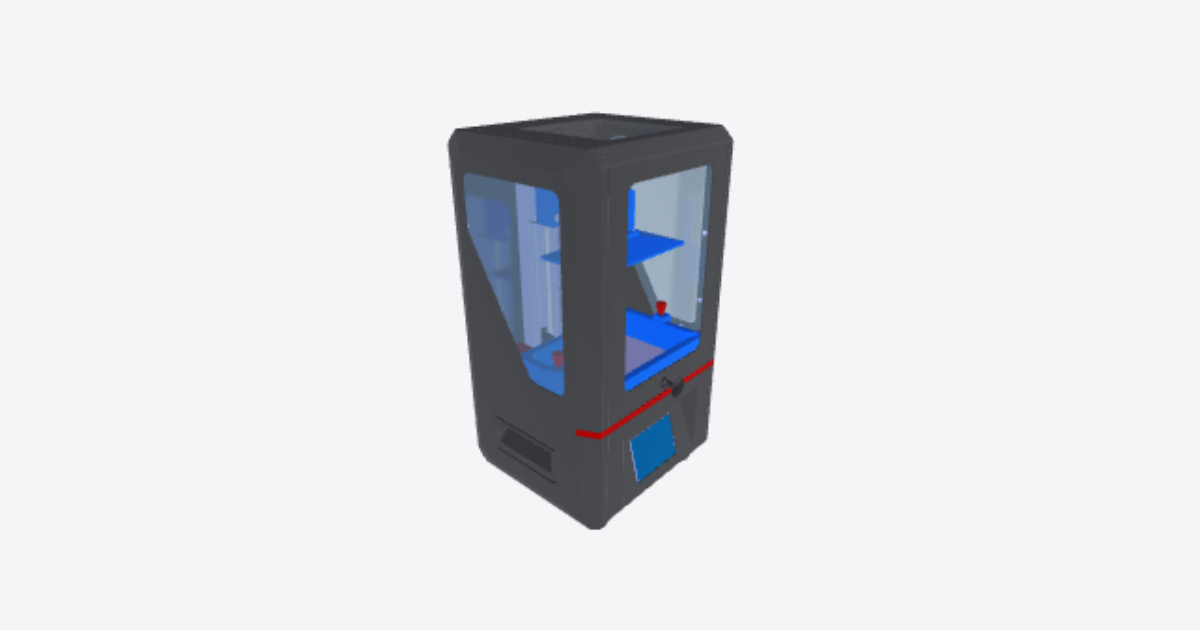
Initialization and setup
13 steps
Open the main door
Open the front door of the printer.Install the handle on the top cover
Screw the highlighted handle onto the top cover so you can lift the cover easily.Open the top cover.
Remove the screws and lift the top cover away momentarilyCheck the LCD screen
Make sure the 2K LCD screen and the platform are clean and free of dust (see the photo).Plug the power
Plug in the power and turn on the power switch.Home the Z axis
On the touch screen, tap TOOLS > MOVE Z > HOME. Wait while the Z axis moves down: it stops by itself at the home position.Loosen the platform screws
Use an Allen key to loosen the highlighted platform screw (do not remove it), so the build plate can settle flat on the screen during levelling.Lower the platform
Lay a sheet of A4 paper on the LCD screen, then fit the platform onto its bracket. If there is not enough room, raise the Z axis by 0.1 mm or 1 mm on the touch screen until the platform fits.Tighten the red platform fixed knob on the top.
Tighten the red knob on top of the platform bracket to hold the platform in place.Double check
On the touch screen, move the Z axis up and down in small steps until you feel slight resistance when you pull the paper: the gap between the LCD screen and the platform should be about the thickness of a sheet of paper. Then, pressing the platform down gently, tighten the platform screw you loosened in step 7.Adjust Z-height
Save this height as the first-layer position: tap TOOLS > Z=0 on the touch screen, then OK in the pop-up (see the photo). Levelling is now finished.Function test of UV-LCD
Raise the platform about 120 mm, then tap TOOLS > DETECTION > NEXT. The LCD screen should show a complete rectangle (see the photos). If it does not, the UV light or the screen may be faulty: contact Anycubic support.Re-install resin vat
Make sure the resin vat is nice and clean, then install the resin vat so that it
aligns with the two limit-screws on the panel